

learn-stack guide
Fill the gaps and pick what to learn next
Gaps your sources assume, one-click source finding, the Learn next frontier and keeping the graph tidy.
6 steps · about 3 min. Press → or space to advance; swipe on a phone.
Step 1 of 6
What a gap is
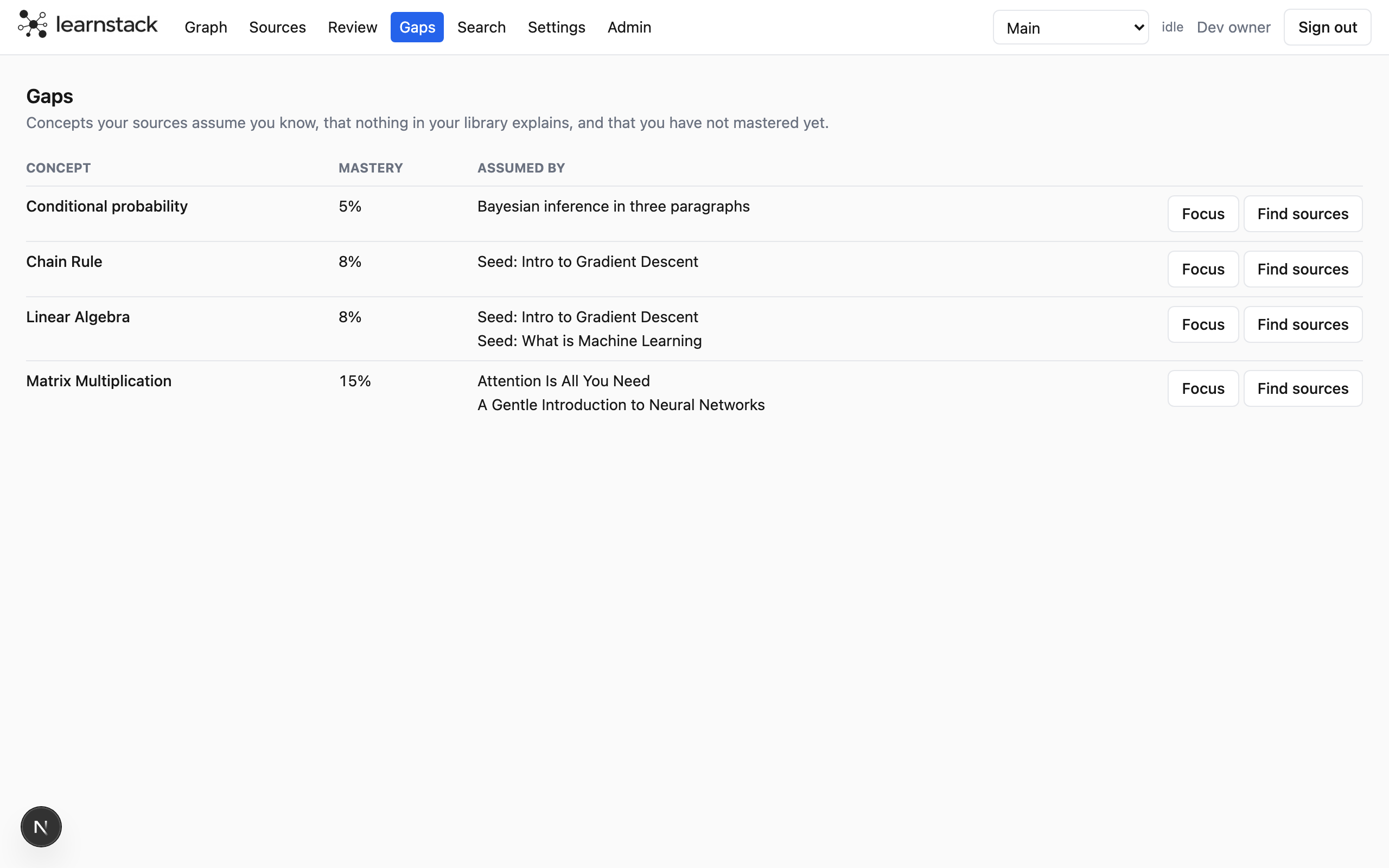
A gap is a concept your sources rely on but never explain: the prerequisite a paper takes for granted. The Gaps page lists them with the sources that assume each one, and the graph draws them with a red outline.
Step 2 of 6
Find something to read
Find sources runs a web search for a readable explanation of the gap and lists a few candidates with a reason for each. Each candidate is checked: a page that will not load is marked so you can paste its text instead, and a dead link is dropped.
- Add opens the usual Add flow, with an optional brief, anchored on the gap concept.
- Dismiss hides a candidate; Refresh searches again.
- The list is saved on the concept, so you can come back to it from the panel's Sources tab.
Step 3 of 6
Or think it through yourself
Focus on a gap row starts a Focus session on that concept: write what you think it means and have the partner check your draft against your sources. The last guide covers it.
Step 4 of 6
Learn next
Learn next, on Today and in the concept panel, is the frontier: concepts you do not know yet whose prerequisites you already do, ranked by how many other concepts each one unblocks.
- "Path to here" in a concept's Overview lists the unmet prerequisites in the order to take them.
- Prerequisite links come from the sources and from you: add one from the panel when the model missed it.
Step 5 of 6
Keep the graph tidy
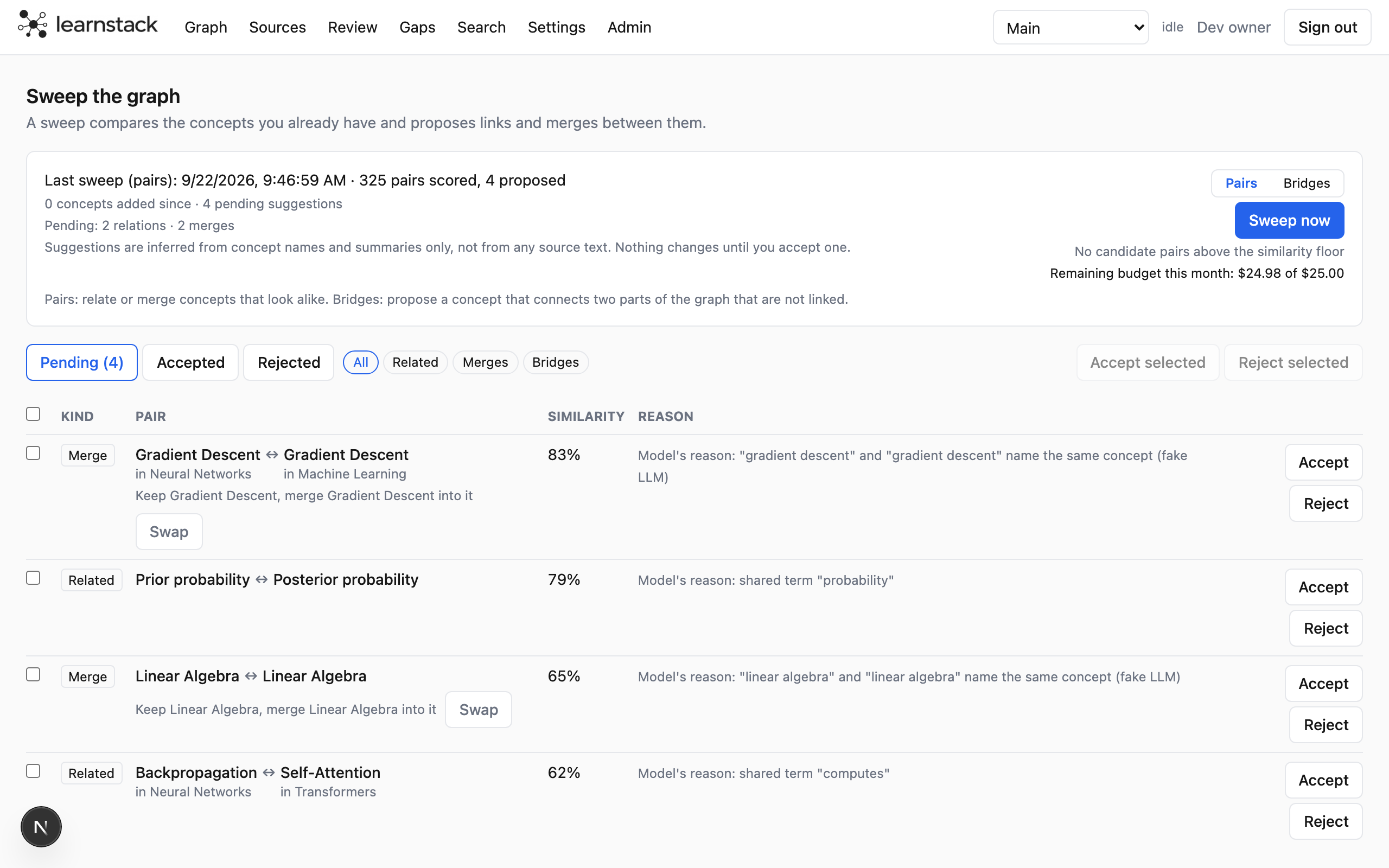
The panel lets you rename, merge, split, re-parent or delete a concept; every edit is yours and never overwritten by a later run. The Sweep page does the scanning for you: it proposes merges and related-to links between similar concepts, and Bridge mode proposes a concept that connects two parts of the graph that never touch.
- Accept, reject or undo each proposal; a rejected merge is remembered and never proposed again.
- Merging is reversible from the merge log.
Step 6 of 6
See the graph your way
The toolbar filters by mastery band, gaps only, cards due or not-tested-yet; the appearance menu changes what colour and size encode, including a "Your activity" lens that colours by how much you have highlighted, noted and written about each concept.
Next guide: Focus sessions.
That is it